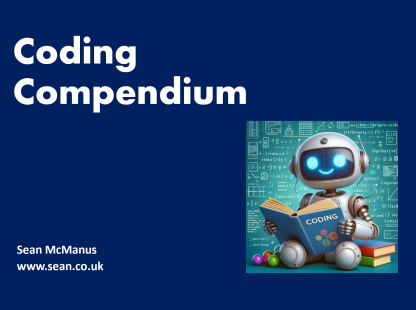
Coding Compendium
A free 100-page ebook collecting my projects and tutorials for Raspberry Pi, micro:bit, Scratch and Python. Simply join my newsletter to download it.



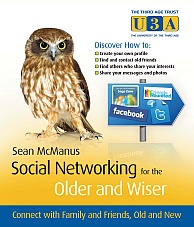 By Sean McManus
If you struggle to use a mouse, it's possible to do most things using keyboard shortcuts, and even if you don't, it's sometimes quicker. Here is a quick guide to some of the keyboard shortcuts that are available, many of which are shared by other browsers too.
This table is taken from an appendix, about learning to use a website browser, from Social Networking for the Older and Wiser. Print it now.
| Action | Shortcut |
|---|---|
| Go to the address bar | F6, or ALT+D |
| Add www at the start and .com at the end of a website address. Enables you to just type Google, for example, and then use the shortcut. | CTRL+ENTER |
| Show previously typed addresses, so you can pick one | F4 |
| Go to the search box | CTRL+E |
| Move through browser buttons and webpage links | TAB |
| Select a highlighted link or button | ENTER |
| Scroll down the page (slow) | DOWN |
| Scroll up the page (slow) | UP |
| Scroll down the page (fast) | Page Down |
| Scroll up the page (fast) | Page Up |
| Find a word in the webpage | CTRL+F |
| Move through CTRL+F search results | ENTER |
| Back | ALT+LEFT |
| Forward | ALT+RIGHT |
| Refresh page | CTRL+F5 |
| Stop downloading | ESC |
| Home | ALT+HOME |
| Add current page to favorites | CTRL+D |
| Open favorites | CTRL+I |
| Open history of visited websites | CTRL+H |
| Open new tab | CTRL+T |
| Close tab | CTRL+W |
| Go to next tab | CTRL+TAB |
| Zoom in | CTRL and + |
| Zoom out | CTRL and - |
| Zoom: reset to 100% | CTRL+0 |
| View webpage full screen (toggle on/off) | F11 |
| CTRL+P |
Internet Explorer keyboard shortcuts. From the website for Social Networking for the Older and Wiser by Sean McManus. www.sean.co.uk.
This article is bonus content for my book Social Networking for the Older and Wiser. Visit the homepage for Social Networking for the Older and Wiser for all bonus content, the table of contents and free chapters.
© Sean McManus. All rights reserved.
Visit www.sean.co.uk for free chapters from Sean's coding books (including Mission Python, Scratch Programming in Easy Steps and Coder Academy) and more!
A free 100-page ebook collecting my projects and tutorials for Raspberry Pi, micro:bit, Scratch and Python. Simply join my newsletter to download it.
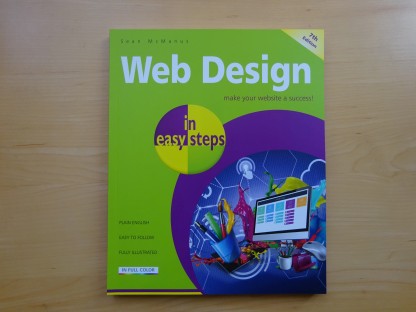
Web Design in Easy Steps, now in its 7th Edition, shows you how to make effective websites that work on any device.
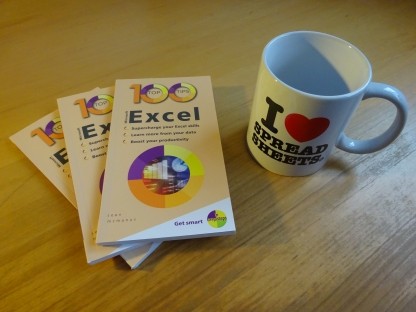
Power up your Microsoft Excel skills with this powerful pocket-sized book of tips that will save you time and help you learn more from your spreadsheets.
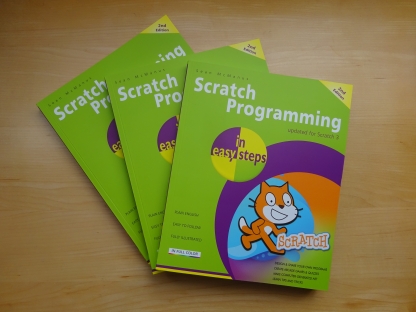
This book, now fully updated for Scratch 3, will take you from the basics of the Scratch language into the depths of its more advanced features. A great way to start programming.
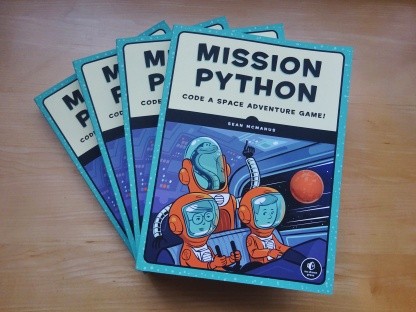
Code a space adventure game in this Python programming book published by No Starch Press.
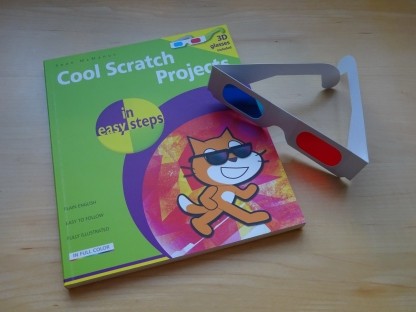
Discover how to make 3D games, create mazes, build a drum machine, make a game with cartoon animals and more!
 Top | Search | Help | Privacy | Access Keys | Contact me
Home |
Newsletter |
Blog |
Copywriting Services |
Books |
Free book chapters |
Articles |
Music |
Photos |
Games |
Shop |
About